The screenshots come from an iPhone, signed in with an Instructor account on the test platform,
so your figures and trainings will be different. The Android app has the same tabs.
Table of contents
- Step 1 — Log in
- Step 2 — Read your dashboard
- Step 3 — Notify your learners
- Step 4 — Follow your classrooms and chat
- Step 5 — Notifications, settings and public profile
- What stays on the web
- Good to know
Step 1 — Log in
Get the app from the App Store on an iPhone, or from Google Play on an Android phone: both buttons are on the Presentation page. Log in with the same Email and Password as on the web. The app opens on your Dashboard. The bar at the bottom of the screen has five tabs:
In the header, your avatar opens Settings, the chat icon opens your chatrooms and the bell opens
Notifications.
Step 2 — Read your dashboard
From top to bottom:- Your instructor space welcomes you.
- Some features are only on the web gives the address of the web app, with a button to copy it.
- Four counts open their tab when you tap them: Trainings, Classrooms, Chatrooms and Unread notifications.
- Recent conversations, My Trainings and Latest notifications show the three latest items of each list. See all opens the full list.
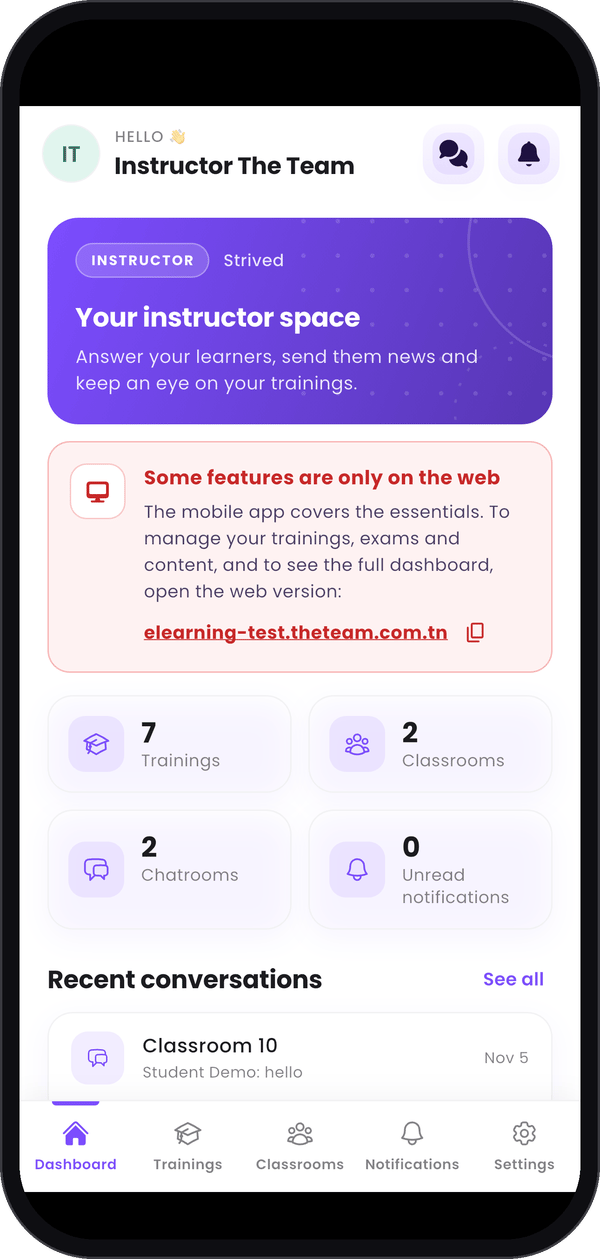
The top of the dashboard.
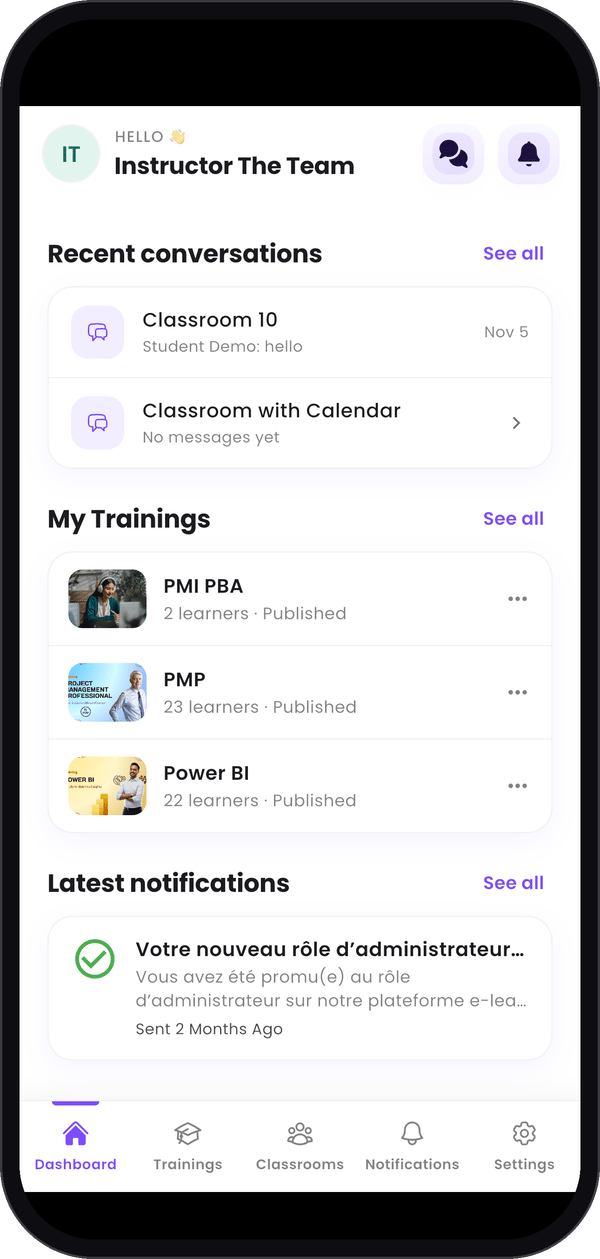
Your latest conversations, trainings and notifications.
Step 3 — Notify your learners
Trainings lists the trainings you teach, with their status, learners, lessons and price. Each card has two buttons:- Notify learners sends an in-app notification to every learner of that training. Pick a Notification Type, fill in Notification Title and Notification Content (or tap one of the Quick messages), then tap Send now. As on the web, it is In-app only · sent immediately: no e-mail is sent and it can’t be scheduled.
- Learners’ emails lists their addresses. Copy all emails copies them separated by commas, ready to paste into your e-mail’s recipients.
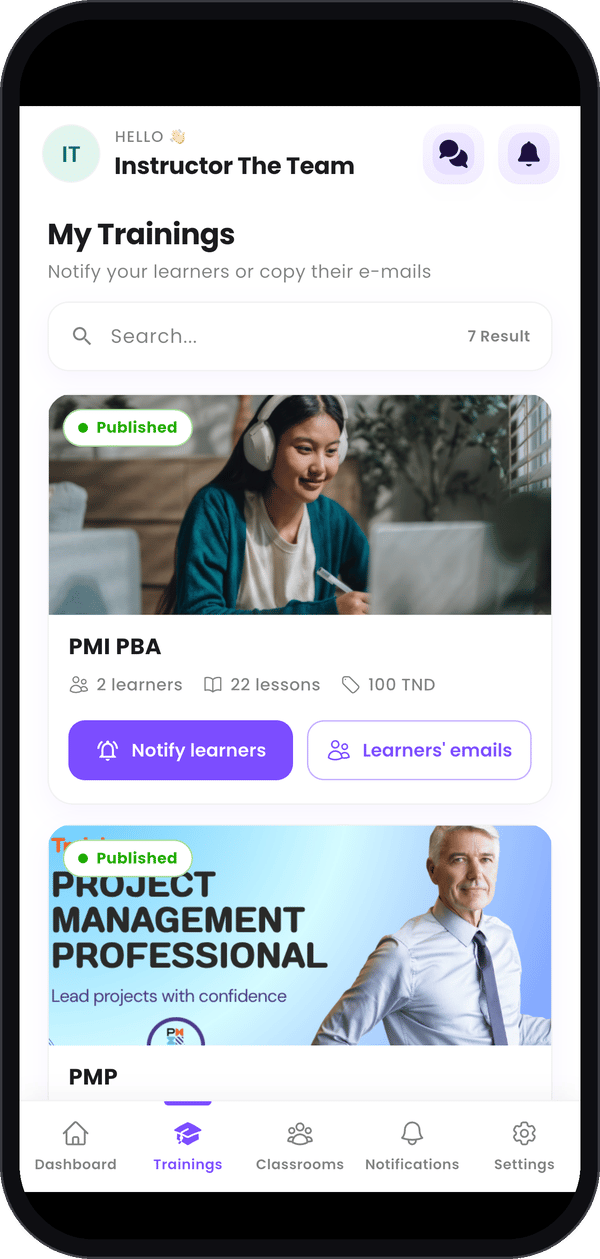
Your trainings.
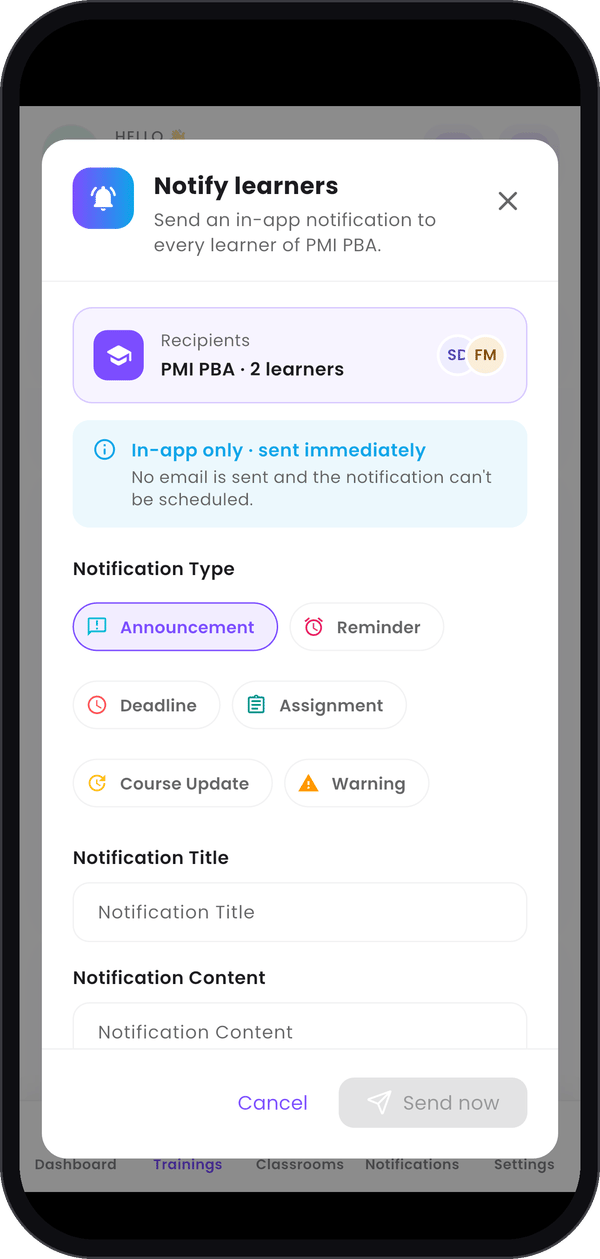
Notify learners.
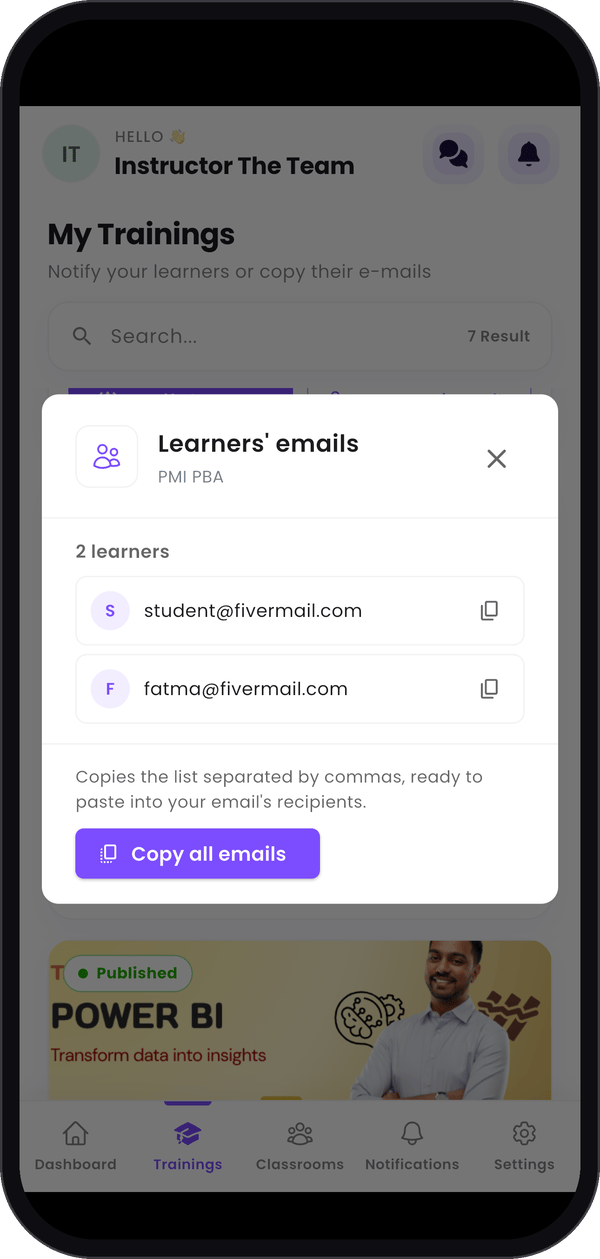
Learners' emails.
Step 4 — Follow your classrooms and chat
Classrooms opens Classrooms & Chat. Two buttons switch the view:- Classrooms shows your classrooms and their members. Tap one to read its page: Content is what your learners see, and Chat room opens its chat.
- Chat lists your chatrooms with their last message. Tap one to read it and answer. You can join images to a message: JPG, PNG, GIF or WEBP, up to 20 MB each, 4 per message.
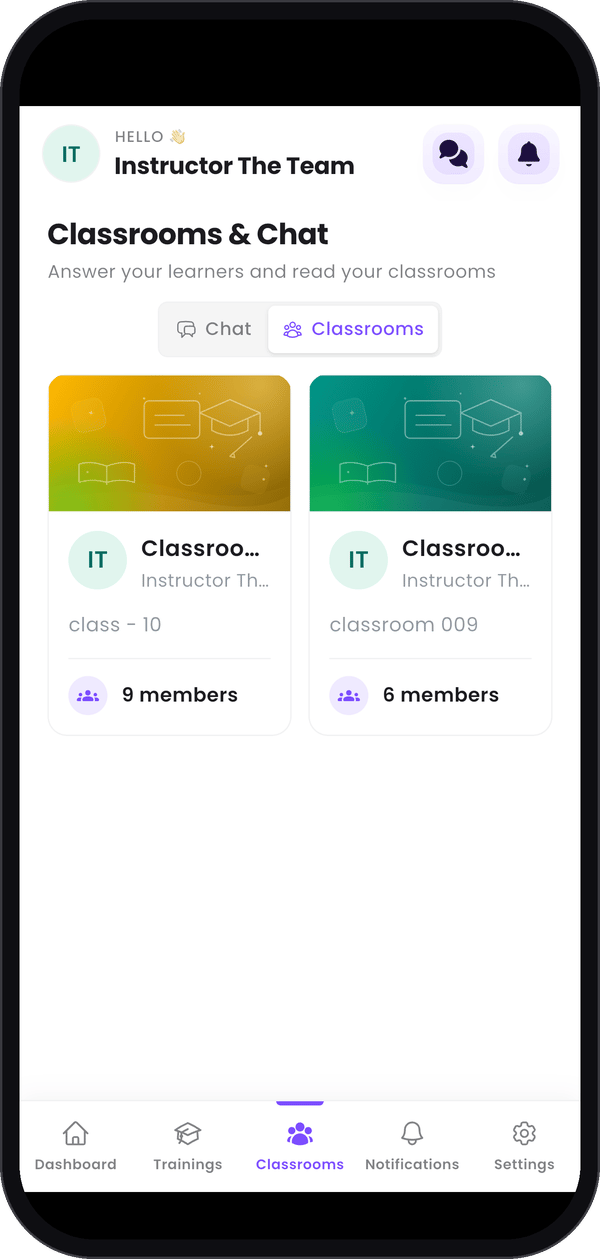
Your classrooms.
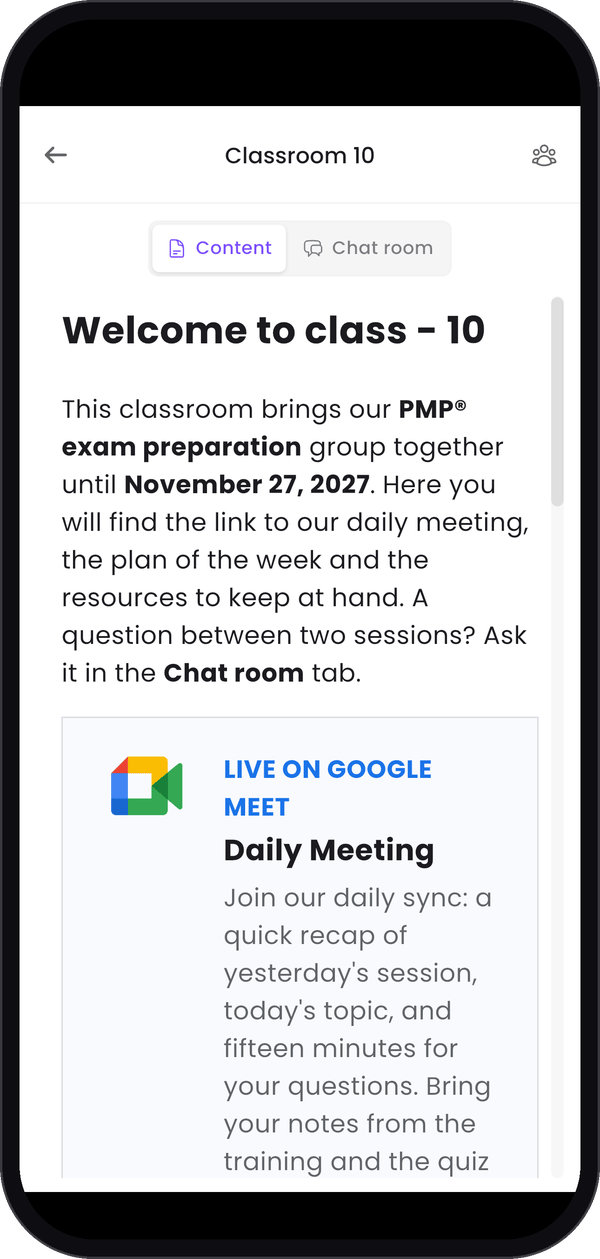
A classroom's page.
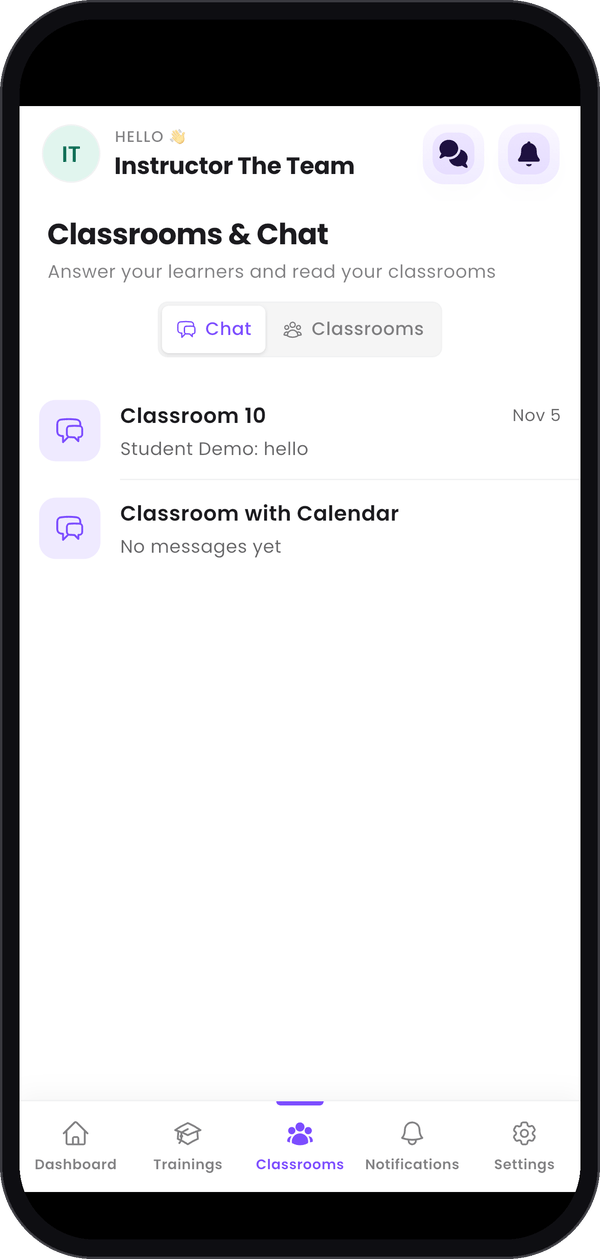
Your chatrooms.
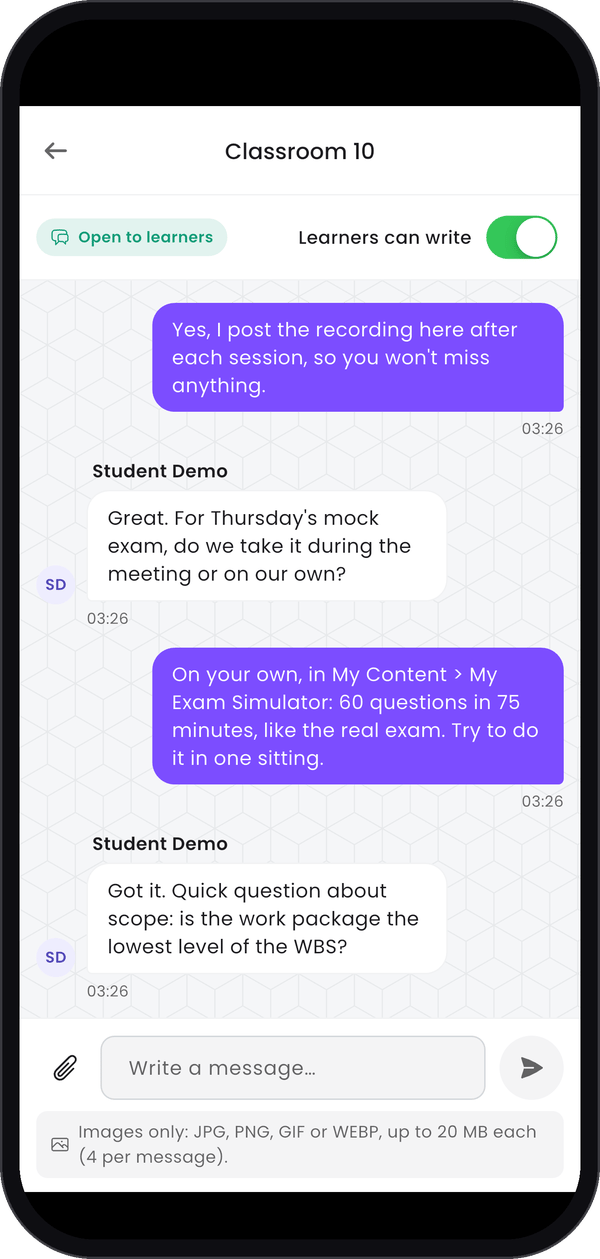
A conversation.
Step 5 — Notifications, settings and public profile
Notifications lists your recent alerts and messages. Settings starts with My public profile, the page your learners see. You can read it on the phone, but you edit it on the web: see Build your public profile. Edit Profile, in the same list, changes your photo and your name. The Help Center is further down.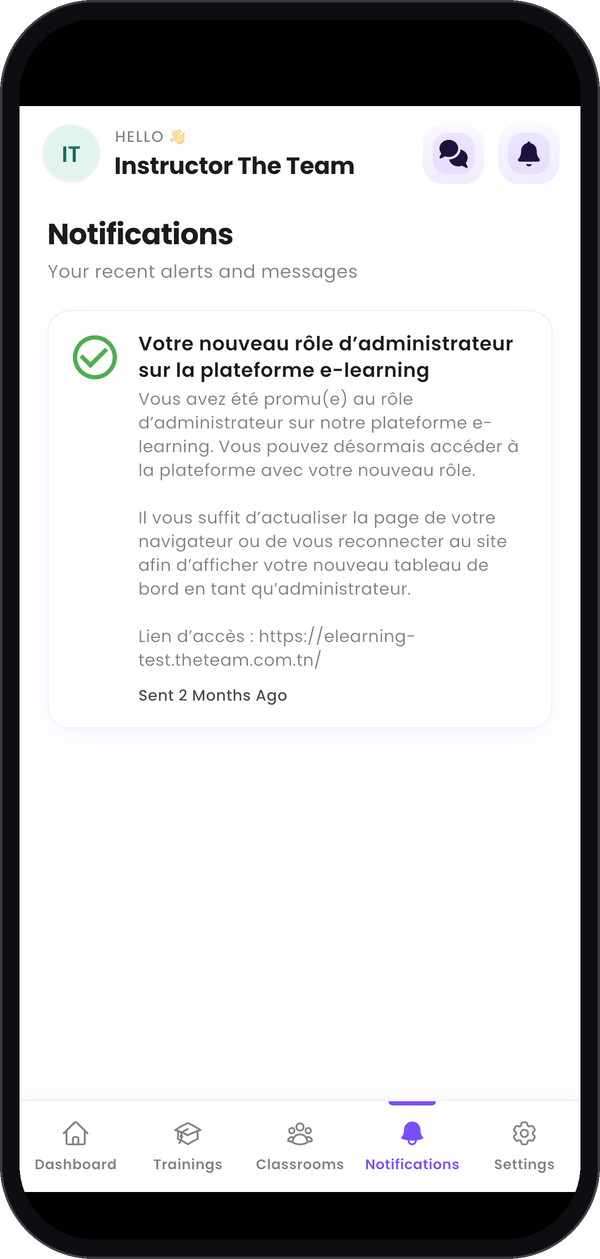
Notifications.
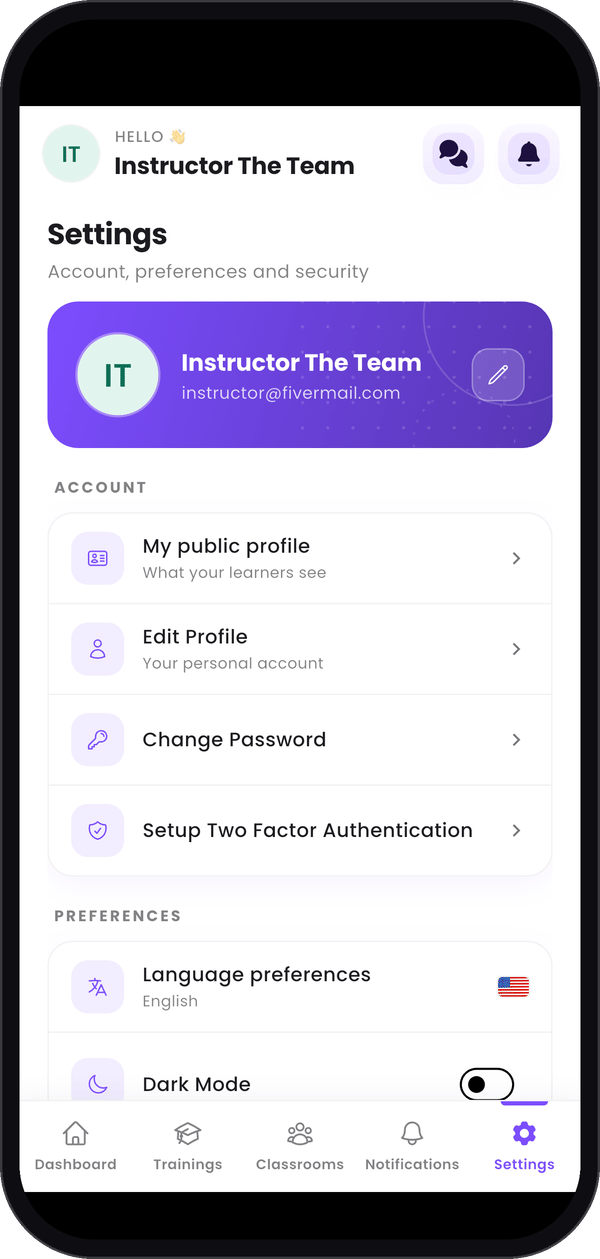
Settings.
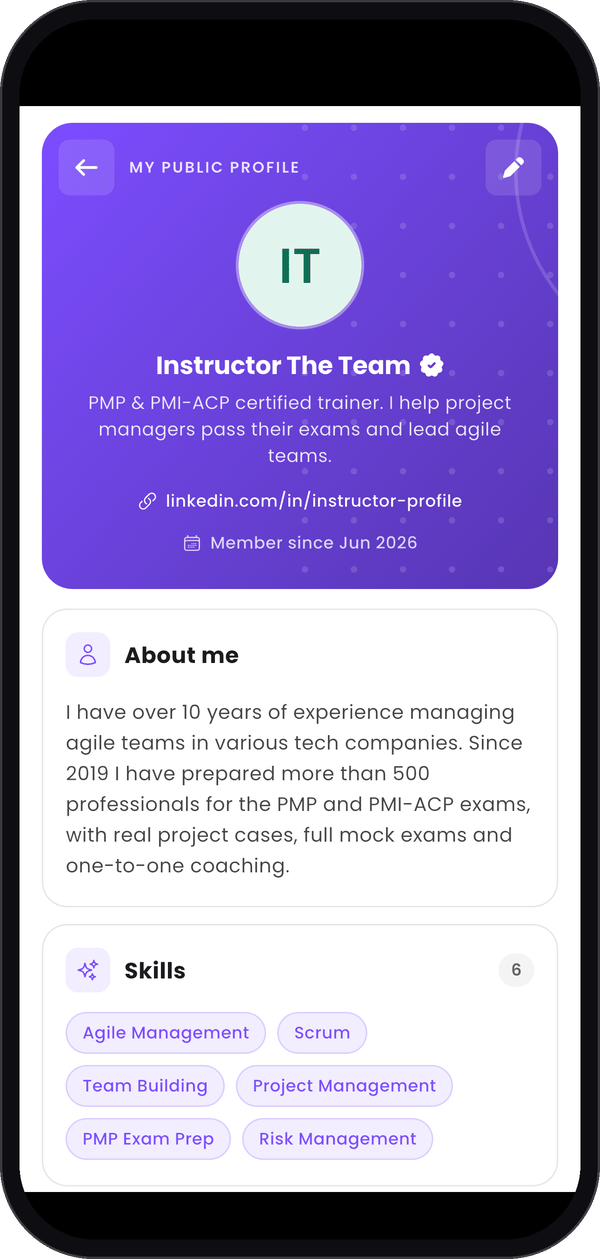
Your public profile.
What stays on the web
The phone covers the essentials. Open the web app on a computer to:- create and edit your trainings, exams and quizzes;
- create and edit your classrooms;
- edit your public profile;
- see the full dashboard and follow your sales.
Good to know
How do I write to my learners by e-mail?
How do I write to my learners by e-mail?
Notify learners sends in-app notifications only, on the phone and on the web. To write by
e-mail, copy their addresses with Learners’ emails and paste them into your own mailbox.
A training has no learners: can I notify it?
A training has no learners: can I notify it?
No. With no learners there is nobody to notify, and the app tells you so.
I see no classrooms
I see no classrooms
Your classrooms show in the app once they exist on the web: see
Classrooms and chatrooms.