

Everything below is for the web app on a computer, signed in as an Instructor. Amounts are
in Tunisian dinars (TND).
Table of contents
- Step 1 — Open your sales
- Step 2 — See the orders of one item
- Step 3 — Export your sales
- Good to know
Step 1 — Open your sales
Click sales details in the sidebar. Two tabs list your items: Trainings and Exams, with their count in brackets.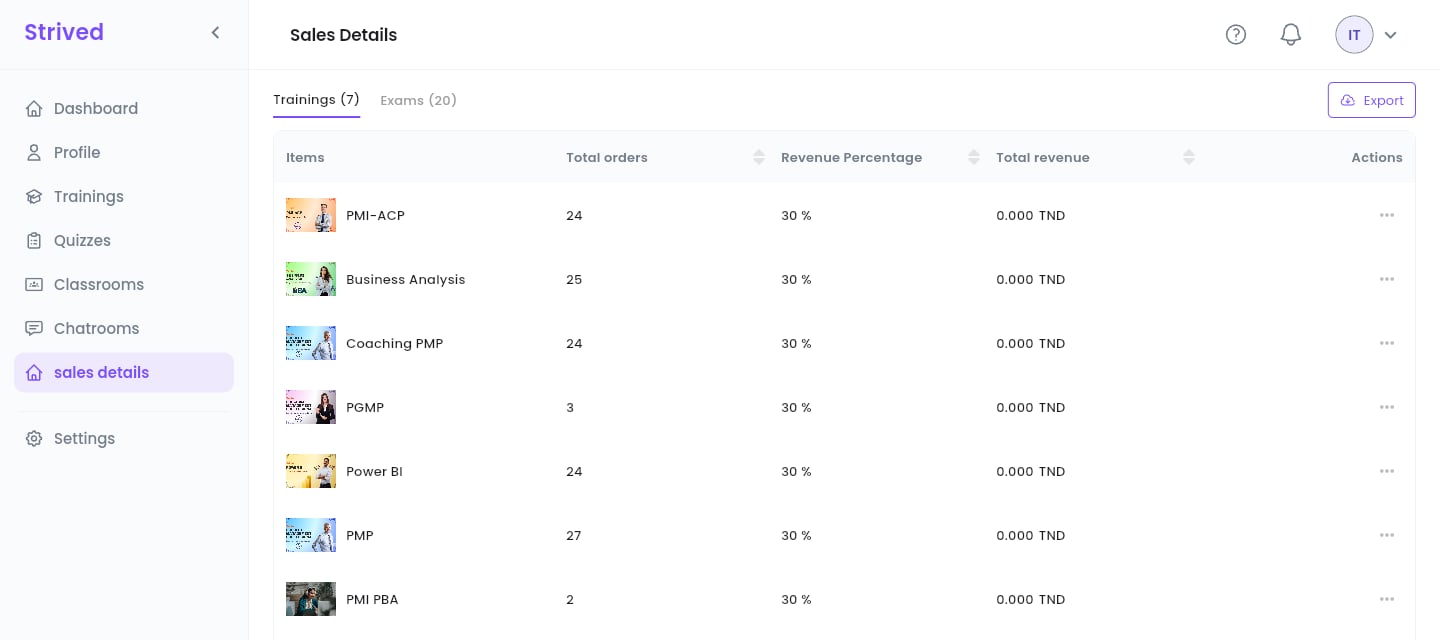
sales details → Trainings.
Click a column header to sort, for example by Total orders to see your best sellers.
Step 2 — See the orders of one item
Open ⋯ → Preview on a row.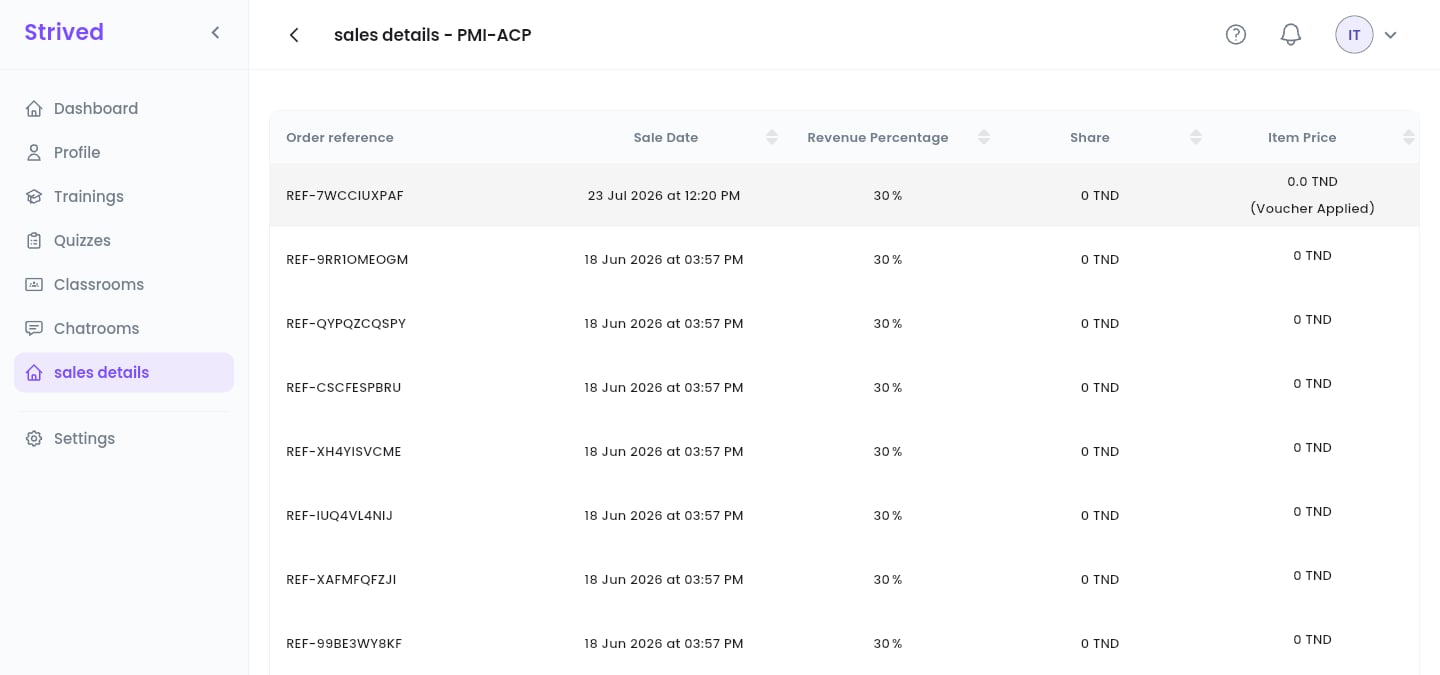
The orders of one training.
Step 3 — Export your sales
Click Export at the top right of sales details, then As PDF or As CSV. CSV opens in Excel or Google Sheets.Good to know
Who sets my revenue percentage?
Who sets my revenue percentage?
An admin, per instructor. Once a training has sold, its percentage is locked so that past orders
stay correct.
Where do I see my totals?
Where do I see my totals?
On your Dashboard: Total revenue, Trainings Earnings and Exams Earnings, with
charts by week or month — see Find your way around.