

Everything below is for the web app on a computer. You will see your own attempts and your
own scores.
Table of contents
- Step 1 — Open Exam Attempts
- Step 2 — Read the table
- Step 3 — Review the correction
- Good to know
Step 1 — Open Exam Attempts
Click My Content in the top bar, then the Exam Attempts tab (address/student-my-content/attempts). The See my attempts button on an exam’s page leads to the same
place.
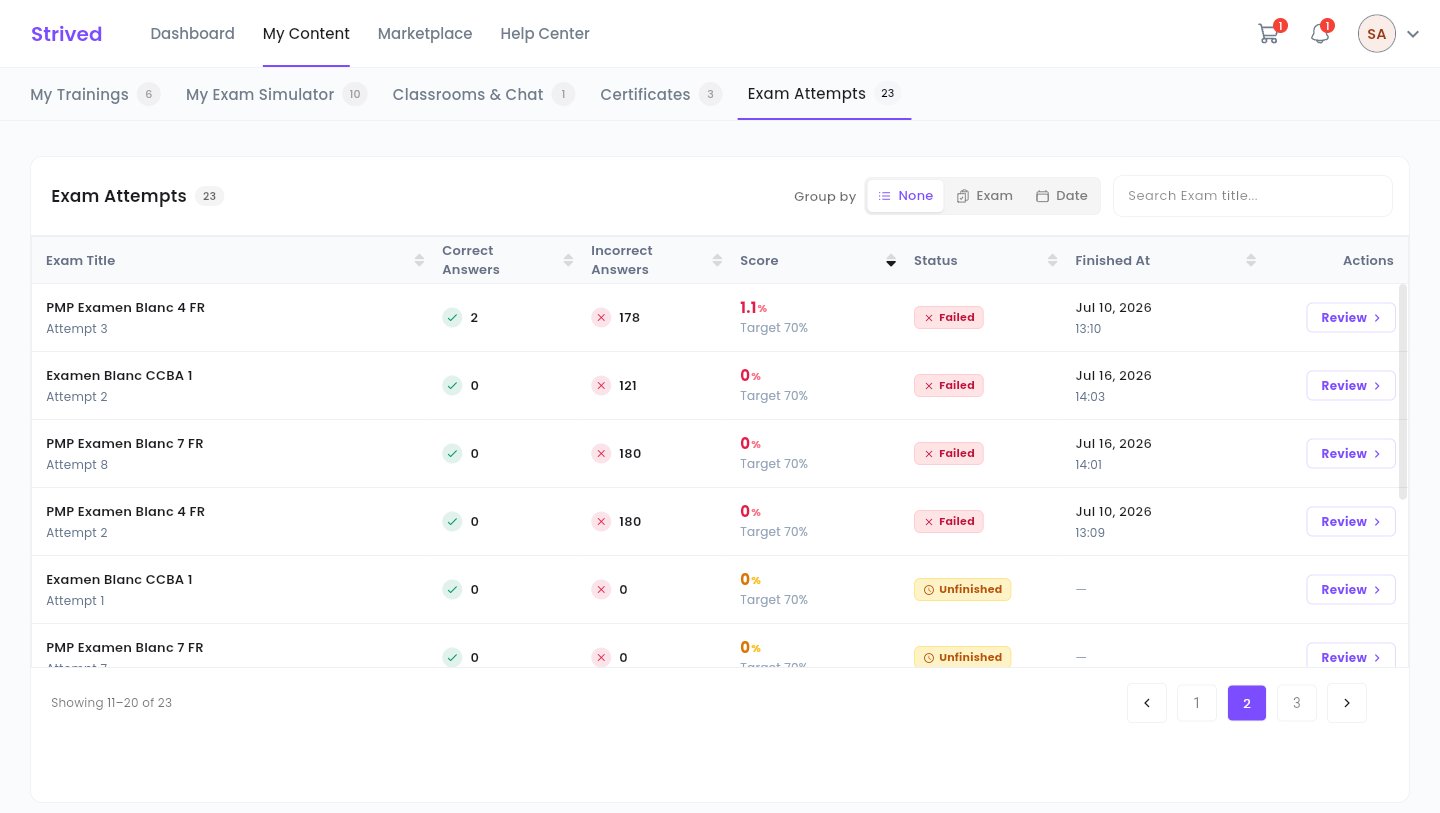
My Content → Exam Attempts: one attempt per row.
Step 2 — Read the table
Group by changes how the table is laid out:
- None — one long list, as above.
- Exam — your attempts gathered under each exam.
- Date — your attempts gathered by date.
Step 3 — Review the correction
Click Review on an attempt. The Review Answers screen opens: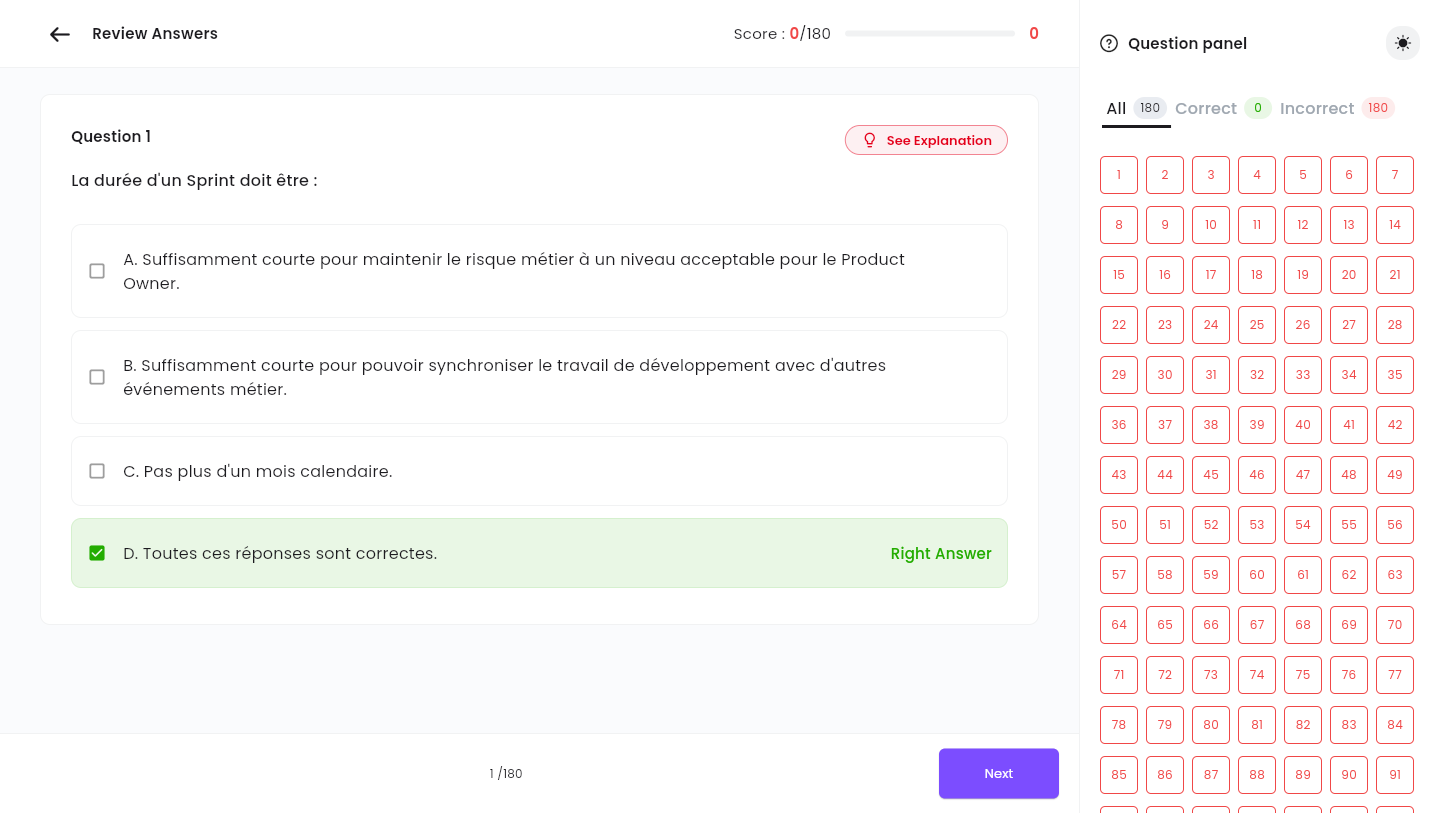
The correction of an attempt: the right answer is highlighted in green.
- At the top: your Score, as right answers out of the total (for example
Score : 0/180). - In the middle: the question, with the Right Answer highlighted in green.
- See Explanation shows the instructor’s comment on this question; Back to answers’ review returns to the question.
- Next and Previous at the bottom move through the questions.
- On the right, the Question panel lists every number: green for a right answer, red for a wrong one. The All, Correct and Incorrect filters help you focus on your mistakes.
Good to know
Why does an attempt show Unfinished and 0%?
Why does an attempt show Unfinished and 0%?
The exam was started and then left, or the page was reloaded, without submitting. The attempt
still counts toward the number of attempts used.
A question has no explanation
A question has no explanation
The instructor did not write one for this question: the screen then shows
“No explanation was provided”.
How do I retake an exam?
How do I retake an exam?
Go back to My Exam Simulator and open the exam: the attempts chip shows how many you have
left. See Take a mock exam.