
Everything below is for the web app on a computer. You will see your own exams.
Table of contents
- Step 1 — Open My Exam Simulator
- Step 2 — Read the exam page
- Step 3 — Confirm and start
- Step 4 — Answer the questions
- Step 5 — Submit and see your score
- Good to know
Step 1 — Open My Exam Simulator
In the top bar, click My Content, then the My Exam Simulator tab (address/student-my-content/exams). Your exams are grouped by category; each card shows the exam title,
its instructor, the number of questions and the duration. Click a card to open it.
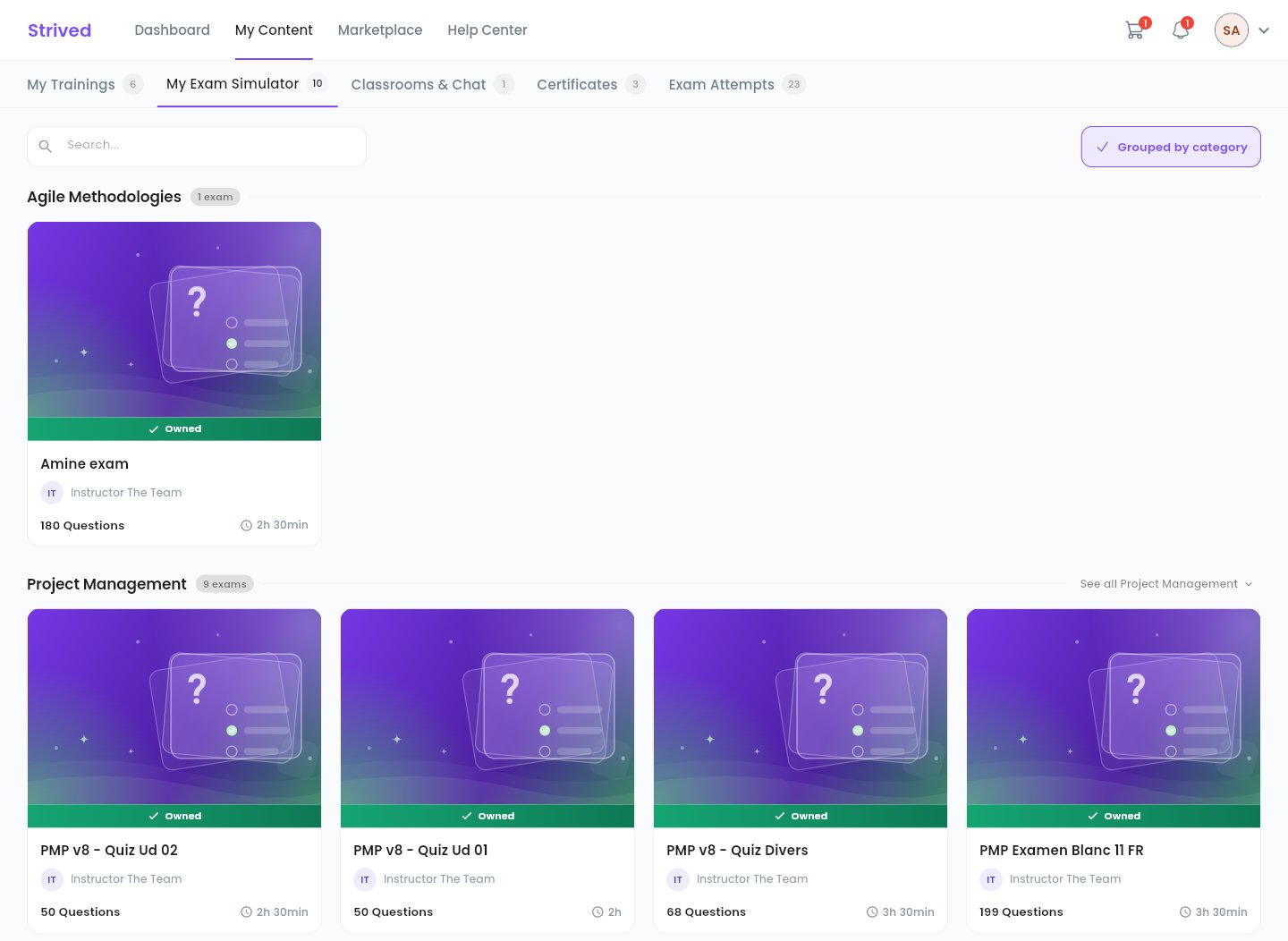
My Content → My Exam Simulator: the mock exams you own, grouped by category.
Step 2 — Read the exam page
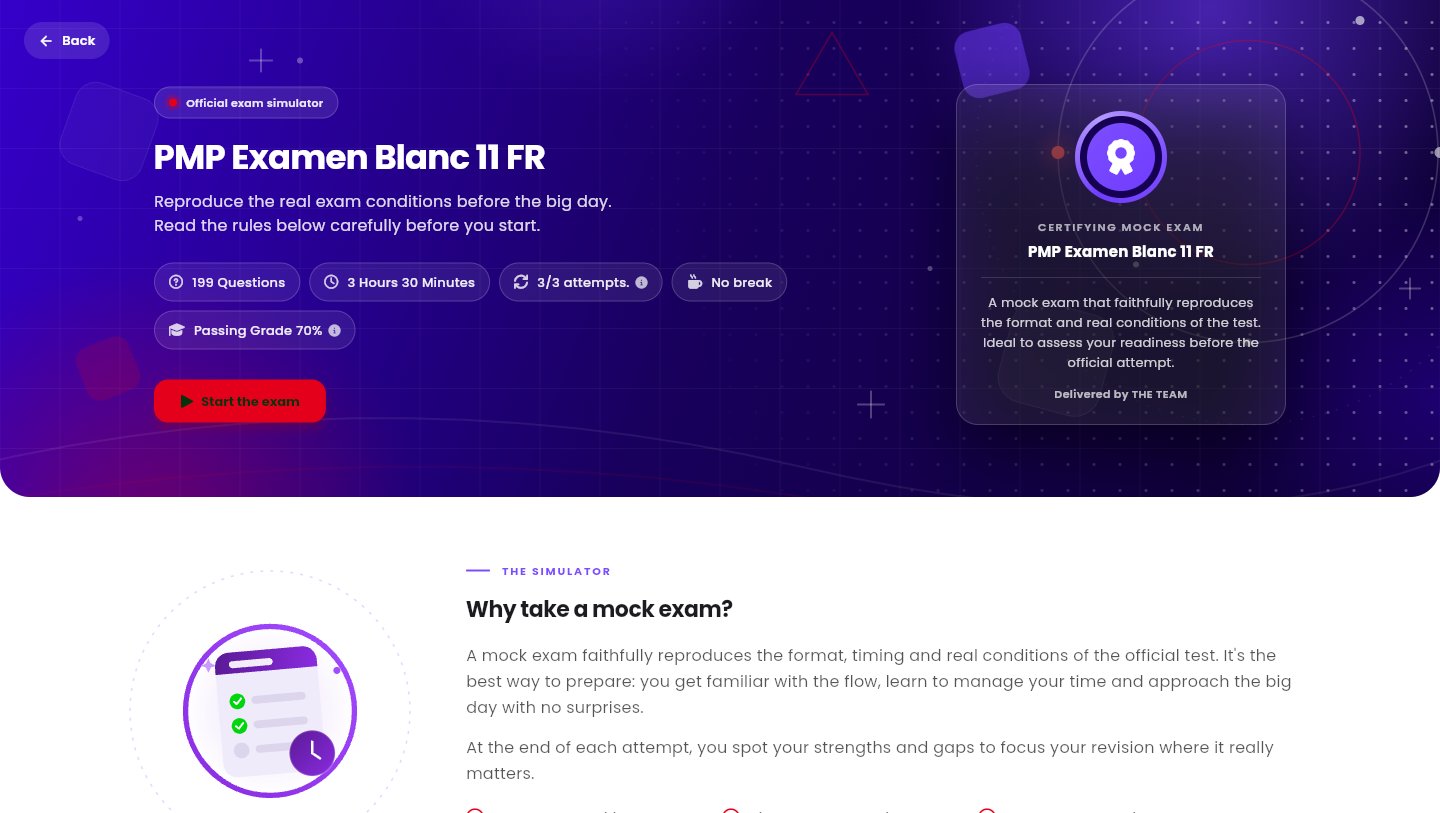
The page of a mock exam, before you start it.
Further down, Why take a mock exam? explains the simulator, the Exam conditions section
details the rules, and See my attempts opens the history of your attempts.
Step 3 — Confirm and start
Click Start the exam. The Before you begin window recalls the conditions: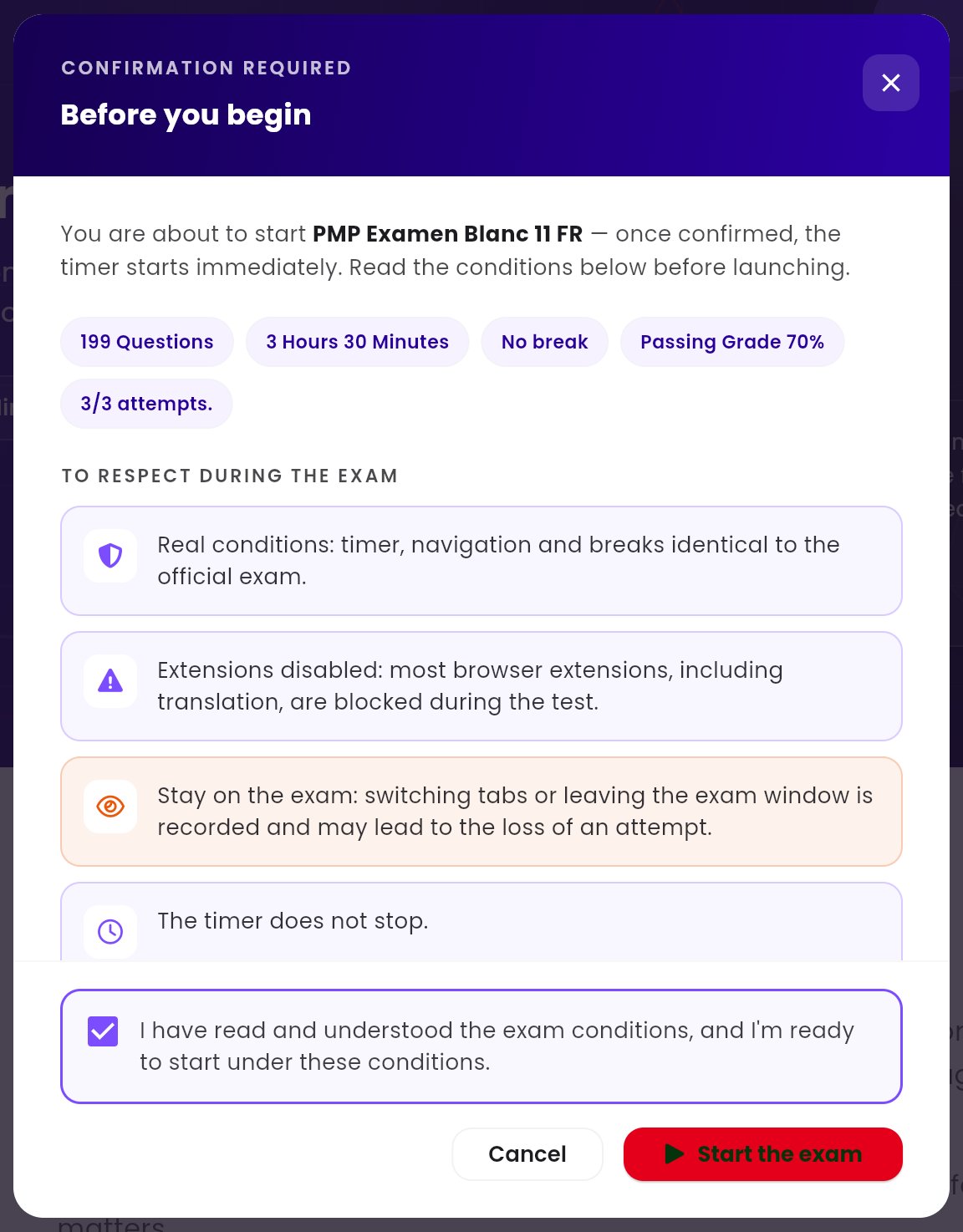
The confirmation window before the exam starts.
1
Read the conditions
Timer, navigation and breaks identical to the official exam; browser extensions (translation
included) disabled; you must stay on the exam page; the timer does not stop.
2
Tick the confirmation box
“I have read and understood the exam conditions, and I’m ready to start under these
conditions.”
3
Click Start the exam
A short countdown shows, then the first question appears and the timer starts.
Step 4 — Answer the questions
The exam screen has three areas:If the exam has breaks, you can only move between the questions you have already reached: the
next ones unlock after the break.
Step 5 — Submit and see your score
Click Submit at the bottom of the Question panel. If some questions are still bookmarked, the app tells you so you can check them first. When the time runs out, your answers are submitted automatically. The Review Answers screen then opens with your score and the correction of every question — see Review your exam attempts. Retry starts a new attempt if you have any left.Good to know
Can I reload the page during the exam?
Can I reload the page during the exam?
No. Reloading or leaving the page stops the exam and your answers are not submitted. To
stop on purpose, use Quit Exam.
I have no attempts left
I have no attempts left
The chip shows
0/3 attempts. Contact support from the Help Center if you need to take
the exam again.Why does my browser's translation not work?
Why does my browser's translation not work?
As on the day of the official exam, most browser extensions, translation tools included, are
disabled during the exam.
Where can I find new mock exams?
Where can I find new mock exams?
In Marketplace → Exam Catalog — see
Buy a training or an exam.